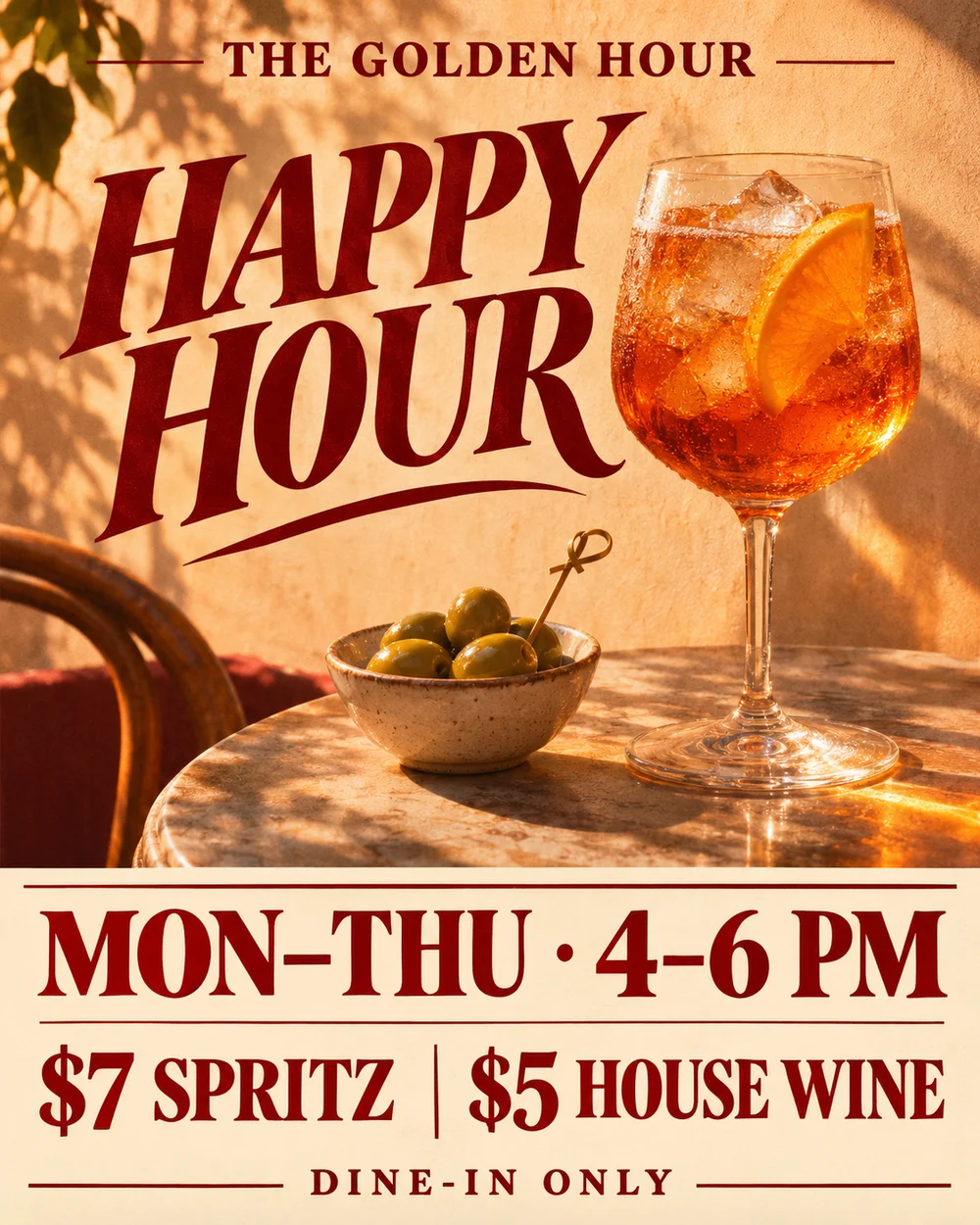
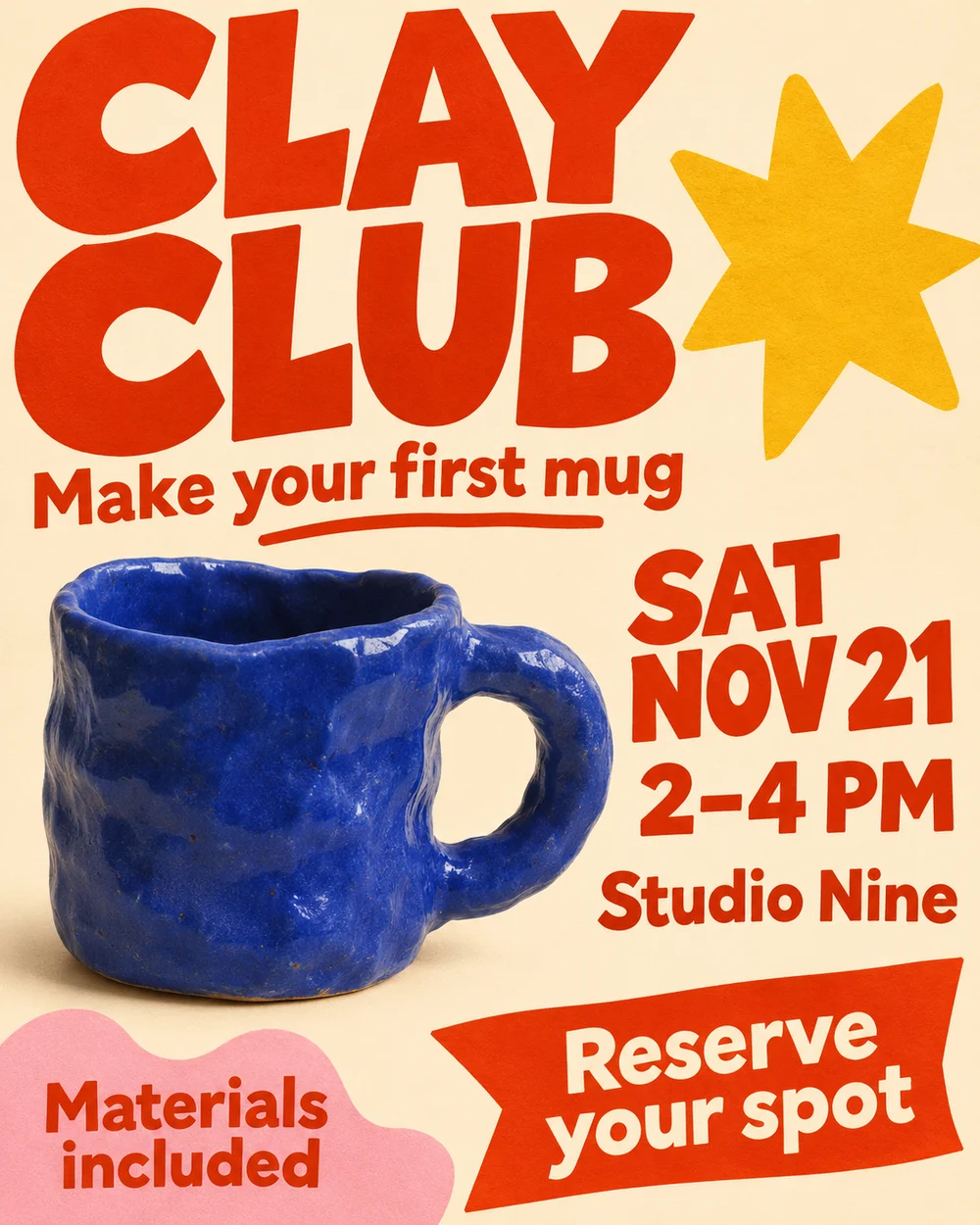
You can use that image as the starting point in BriefPic, describe the replacements together, then review a new version. The useful part is being able to ask for “November 21, $24, Morgan Lee” in one request while keeping the familiar event design as the reference.
The images below show a fictional pottery workshop from our November 6, 2026 BriefPic test.
Gather the changes before you upload
Use the clearest complete copy of the flyer you can find. Include its edges, heading and footer so the reference shows how the whole design fits together. A screenshot with a booking line cut off gives you another problem to solve.
Write down both the old and new wording. For our sample, the change list was:
| Detail | On the old flyer | New wording |
|---|---|---|
| Date | SAT, NOV 14 | SAT, NOV 21 |
| Price | $18 | $24 |
| Instructor | JAMIE CHEN | MORGAN LEE |
Also collect the facts that should stay: the 10:00 AM–12:00 PM session, street address, studio number, booking URL and what's included. Confirm the weekday against your real event date. The example's OAKSTUDIO.EXAMPLE address is fictional; use your actual verified booking destination.
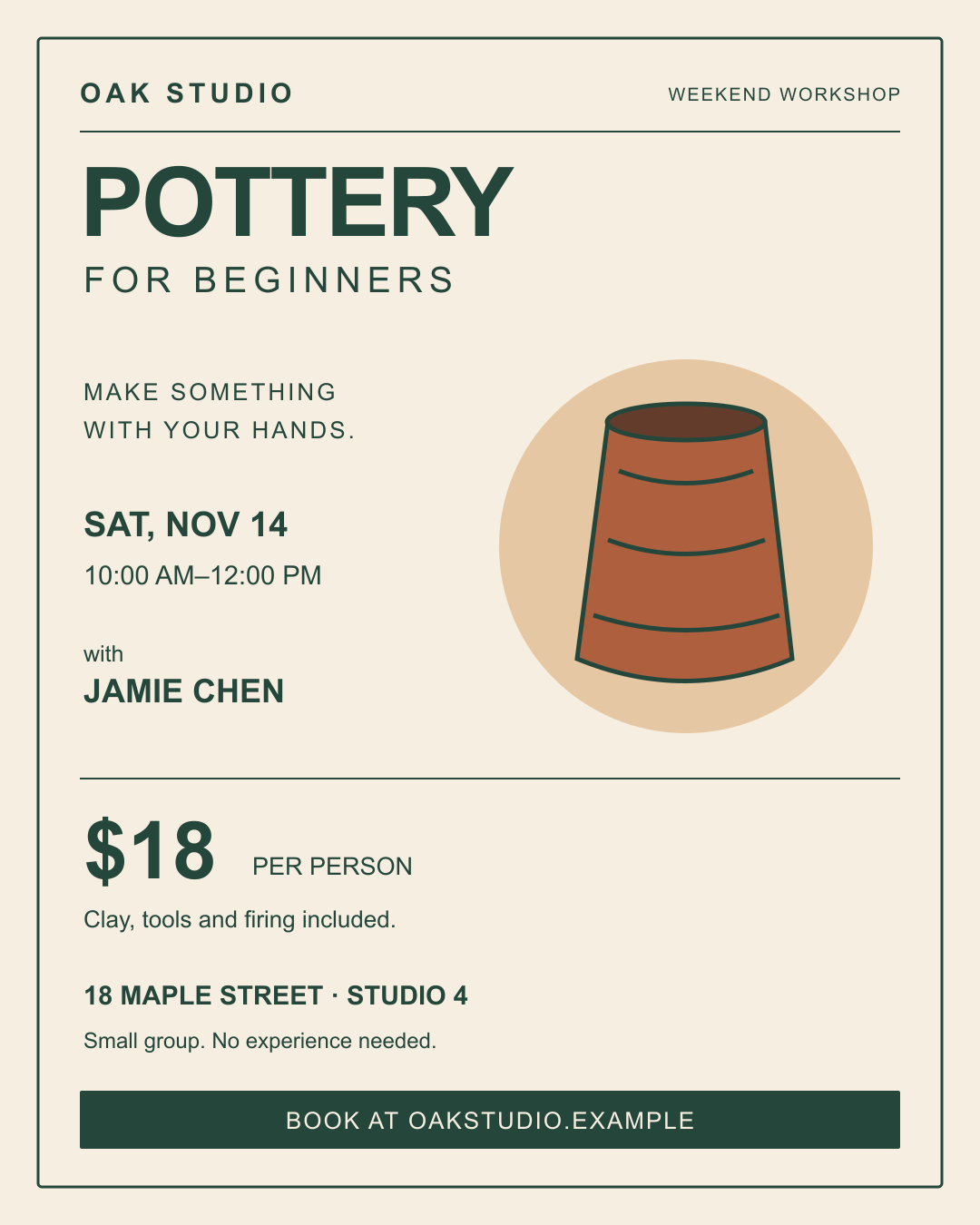
Upload the flyer and make one complete request
- Open BriefPic, sign in if prompted and select Image.
- Choose Edit Existing Image in the upload area and pick a JPG or PNG up to 4 MB. The upload opens as Version 1. You can also reach the same upload through Add source image → Edit the original image.
- Replace any text already in Adjustment Request with your list of changes. Check the total credits shown beside Generate New Variation, then choose that button.
- Select the finished thumbnail under Version History below the canvas and read the changed text before continuing.
This is the exact prompt used for the first result:
Update this existing flyer for next week's workshop. Change SAT, NOV 14 to SAT, NOV 21; change $18 to $24; and change JAMIE CHEN to MORGAN LEE. Preserve the original font style, layout, colors, pottery illustration and every other word. Do not redesign the flyer.The date, price and instructor were correct in the first output. The title, session time, address and booking line also remained readable. There was no need to select and align each text fragment separately.
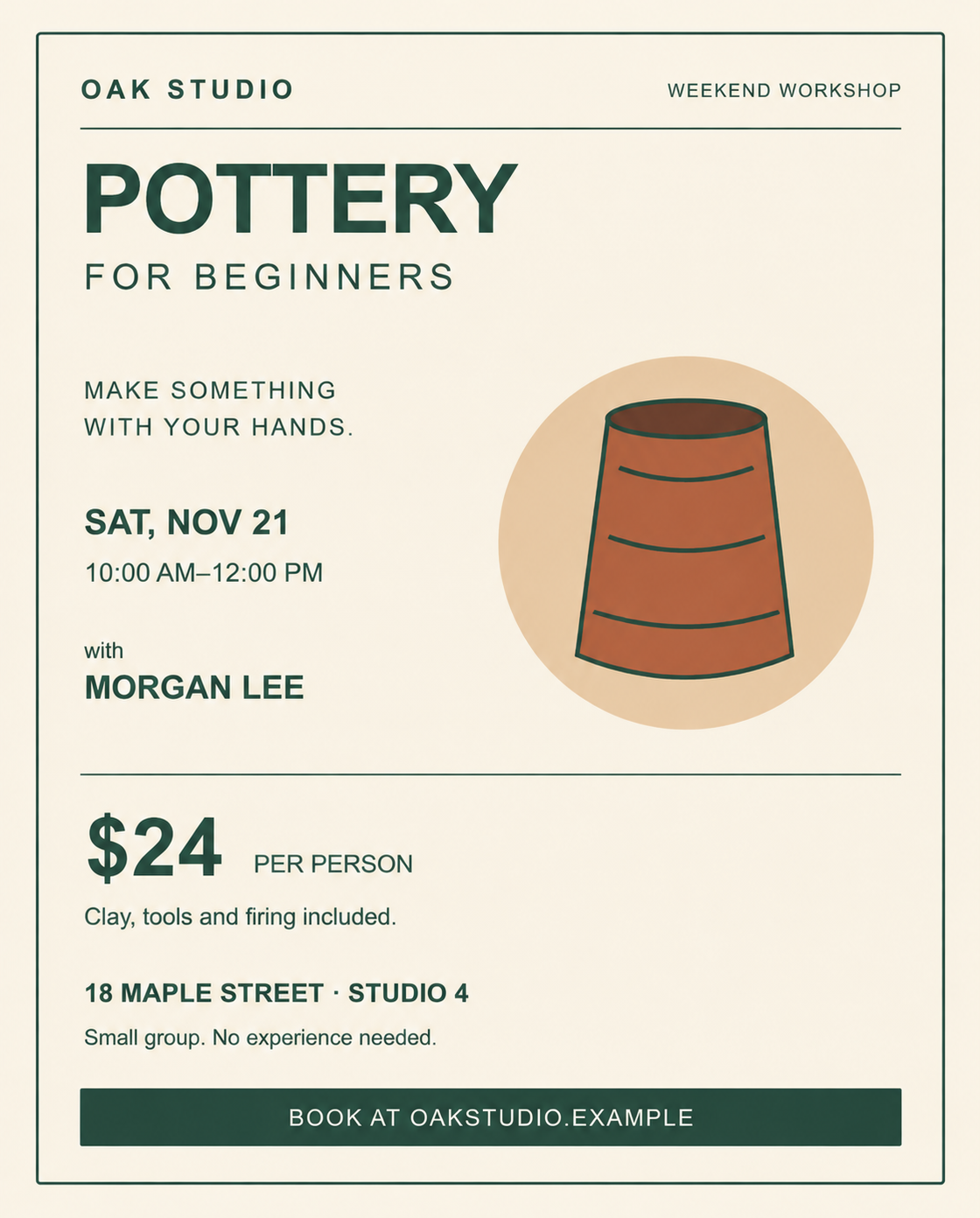
That last detail matters when choosing this workflow. BriefPic carried the design forward, but the request to preserve the font style did not keep every letter shape or untouched pixel identical. If you need an approved logo, exact typeface or illustration to remain completely unchanged, edit a recoverable source file or use a tool that replaces text while preserving the surrounding pixels.
Build your prompt around replacements and fixed facts
“Update this for our next event” leaves the model to infer what needs updating. A stronger request names each replacement, followed by the content and visual structure you want carried forward.
Use this suggested prompt template with your own wording:
Update this existing [event type] flyer.

Replace:
“[exact old date]” with “[exact new date]”.
“[exact old price]” with “[exact new price]”.
“[exact old name]” with “[exact new name]”.

Keep these facts exactly as written:
[event title, time, address, booking URL and other fixed wording].

Keep the existing [colors], [main illustration or photo] and reading order.
Allow [the longer name or line] to wrap within [its existing area] if needed.
Use only the supplied event information. Do not add claims or extra text.Give the visual instruction a concrete object: “keep the pottery illustration on the right” is easier to assess than “keep everything beautiful.” For a recurring event, save this replacement list with the approved image so next month's update starts with known facts.
Give longer names room to fit
A name change can become a layout change. Replacing JAMIE CHEN with DR. ALEXANDRA MONTGOMERY needs more space, even when the rest of the flyer stays familiar.
We tested that longer name on the same original flyer, along with SAT, DEC 12 and $125. The request explicitly allowed the name to “wrap onto two lines within the existing speaker area if needed.” The result placed DR. ALEXANDRA on one line and MONTGOMERY on the next. The name stayed above the divider, clear of the pottery illustration.
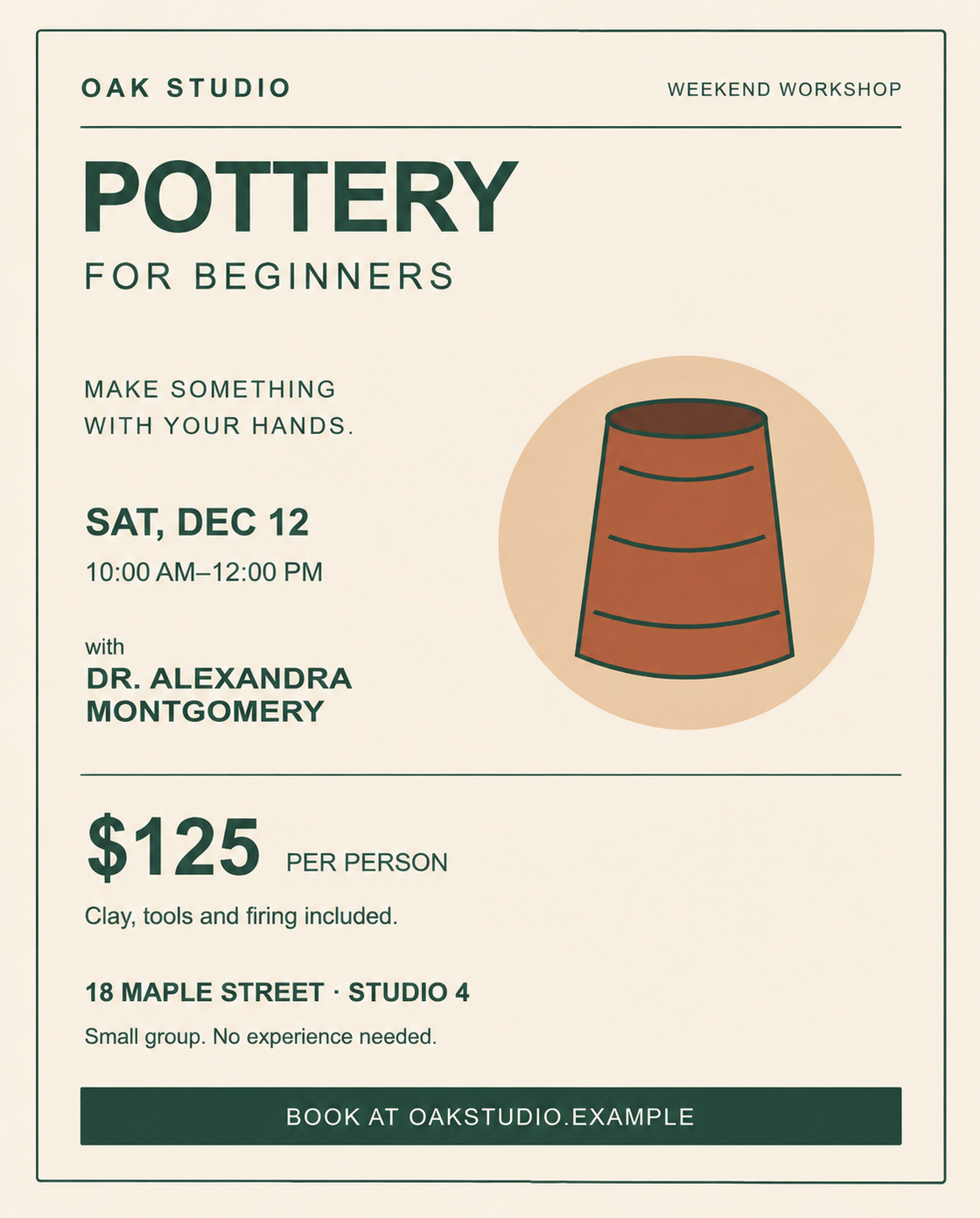
Plan where extra text can go before generating. A roomy instructor block is a useful reference for a class series with changing presenters. If your reference is packed with text, choose which copy to shorten before adding a longer name. Keep the correct spelling; tell BriefPic where wrapping is allowed.
Make follow-up edits from the version you approved
Suppose the workshop moves from Studio 4 to Studio B after you approve the first update. Select that version under Version History below the canvas. If the image is expanded, choose Return to description. Check Current Base beside the editing controls before entering the follow-up.
This was the tested follow-up:
Change only STUDIO 4 to STUDIO B in the address line. Keep SAT, NOV 21, $24 and MORGAN LEE from the current version. Preserve everything else, including the time, street address, booking URL, typography and pottery illustration.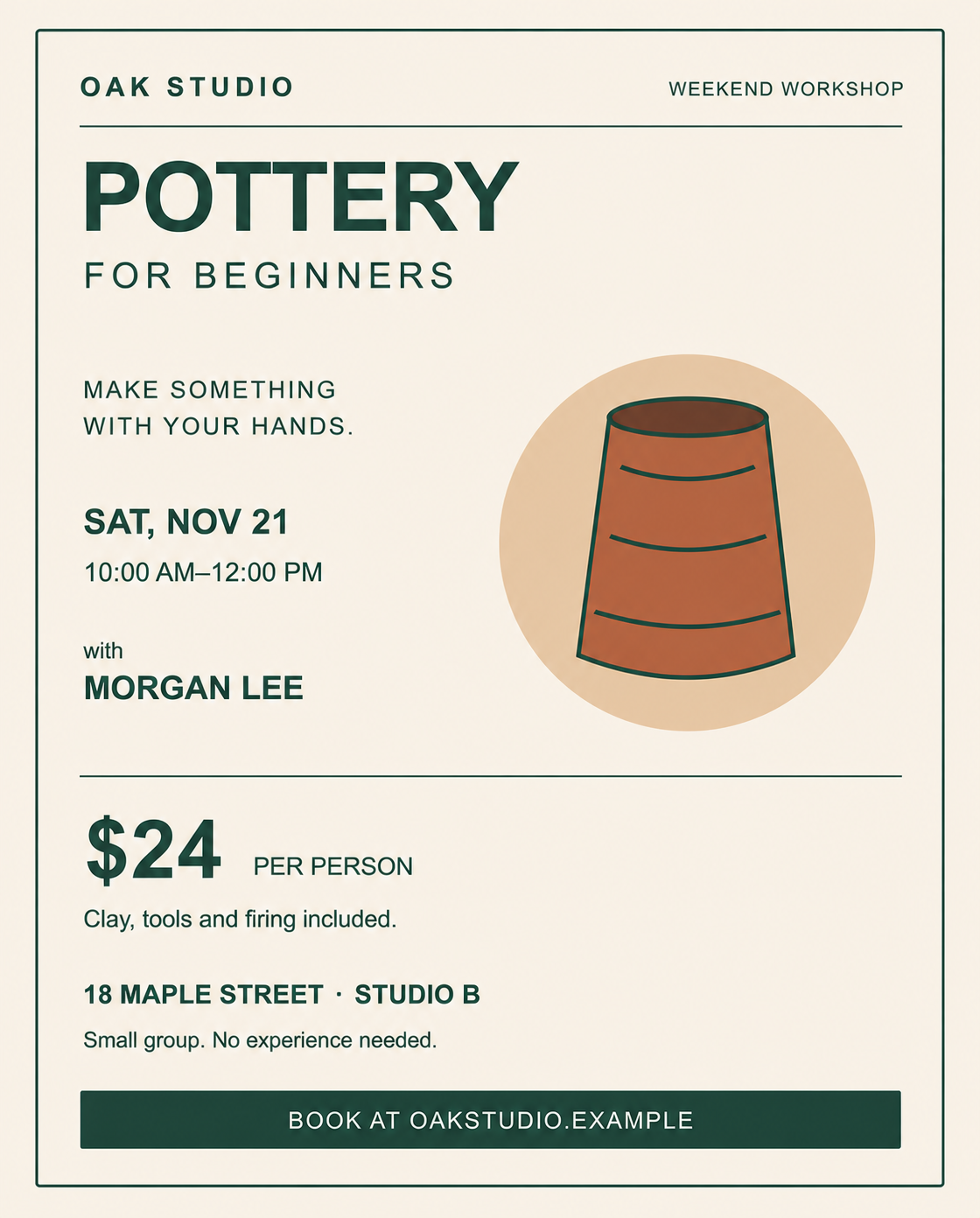
Repeating the already approved date, price and name makes the follow-up specific. Read them again in the result. If you prefer an earlier visual treatment, select that version and continue from there, including any later factual changes it still needs.
Keep a reusable layout, then check the actual file
For a recurring workshop, this example offers a practical layout recipe: a large title at the top, timing and instructor in one column, one activity image alongside, then price, venue and booking information below. Your own old flyer can serve the same purpose when its reading order already works.
If you need a fresh composition, the workshop flyer examples offer another starting point. Here, “reusable template” means an image reference and prompt recipe; the output is a raster image, with no individually editable text layers.
Before downloading or sharing, read every factual line and view the flyer at roughly the size your audience will see it. Check the price and its conditions together. Confirm that a longer name has not crowded the time or address. Open the booking destination separately; scan any QR code rather than judging it by appearance.
Check the pixel dimensions above the selected image. Editing uses the Original aspect setting. In the November 6 test, the 1080 × 1350 input became a 1120 × 1392 output. Plan a separate layout if your destination calls for a different shape. For print, ask your printer for trim, bleed and file specifications.
When the selected version is ready, choose Download Current Version above the preview. Trial downloads have a watermark and a maximum long side of 720 pixels. Your account determines access to the original.
How long did the example take?
The November 6, 2026 member preview recorded 55.6 seconds of generation wait for the date, price and instructor update, 196.8 seconds for the address follow-up, and 44.3 seconds for the separate long-name test. Each generation used 45 credits at Standard with design refinement off.
Preparing the event details, writing the request and reviewing the image take additional time.
To update your own flyer, open BriefPic, upload the clearest copy and start with one complete old-to-new replacement list. Keep the approved wording beside you while reviewing each version, then save the finished image and your prompt recipe for the next event.